Yes, you can connect AI to your CRM. Claude, ChatGPT and the other big AI tools connect to most of the major CRMs out there, and the basic setup takes a few minutes.
And yes, it's safe, as long as you set it up the way you'd onboard a new assistant. Start with tight permissions and loosen them as you build trust.
Connecting it is the easy part, though. The hard part is what comes after.
I was on a call with a client this week whose CRM has been connected to Claude for a while. I showed him he could export the results from his feedback form, hand them to Claude and get a full analysis back. He'd never thought of that. Then he asked the real question: what do I even ask it?
That's what this post is about.
Why We Run on Claude (and Where ChatGPT Fits)
We do our AI work in Claude. Austin and I use it every day, and it's what we set up for our clients.
I'll level with you, though. A lot of it comes down to preference. Claude and ChatGPT have spent the last year copying each other's homework. Both now have skills, connections to your apps and scheduled tasks (an independent comparison lines them up feature for feature). Most of what's in this post works in either one.
Here's why we picked Claude anyway:
Skills are easy to build. A skill is a set of written instructions Claude follows every time you ask for that kind of work. We've built a whole library of them.
Connectors are simple to manage. Claude was built around the standard these connections run on, since Anthropic, the company behind Claude, created it.
Scheduled tasks let a skill run on its own every morning, every Friday or once a month.
It handles long jobs. Hand it a few thousand records and it keeps working through them without getting gummed up.
If your team already lives in ChatGPT, don't switch just for this. Put your effort into building skills instead. That's the part that pays off.
Is It Safe to Connect AI to Your CRM?
The connection runs on something called the Model Context Protocol, or MCP. Think of it as an API built for AI tools: a standard way for an AI to talk to your apps. Anthropic open-sourced it in 2024 as a standard for secure, two-way connections between your data and AI tools.
Two things keep you in control.
It can't reach past your own login. The AI works with your permissions in the app. If your account can't delete records, neither can Claude.
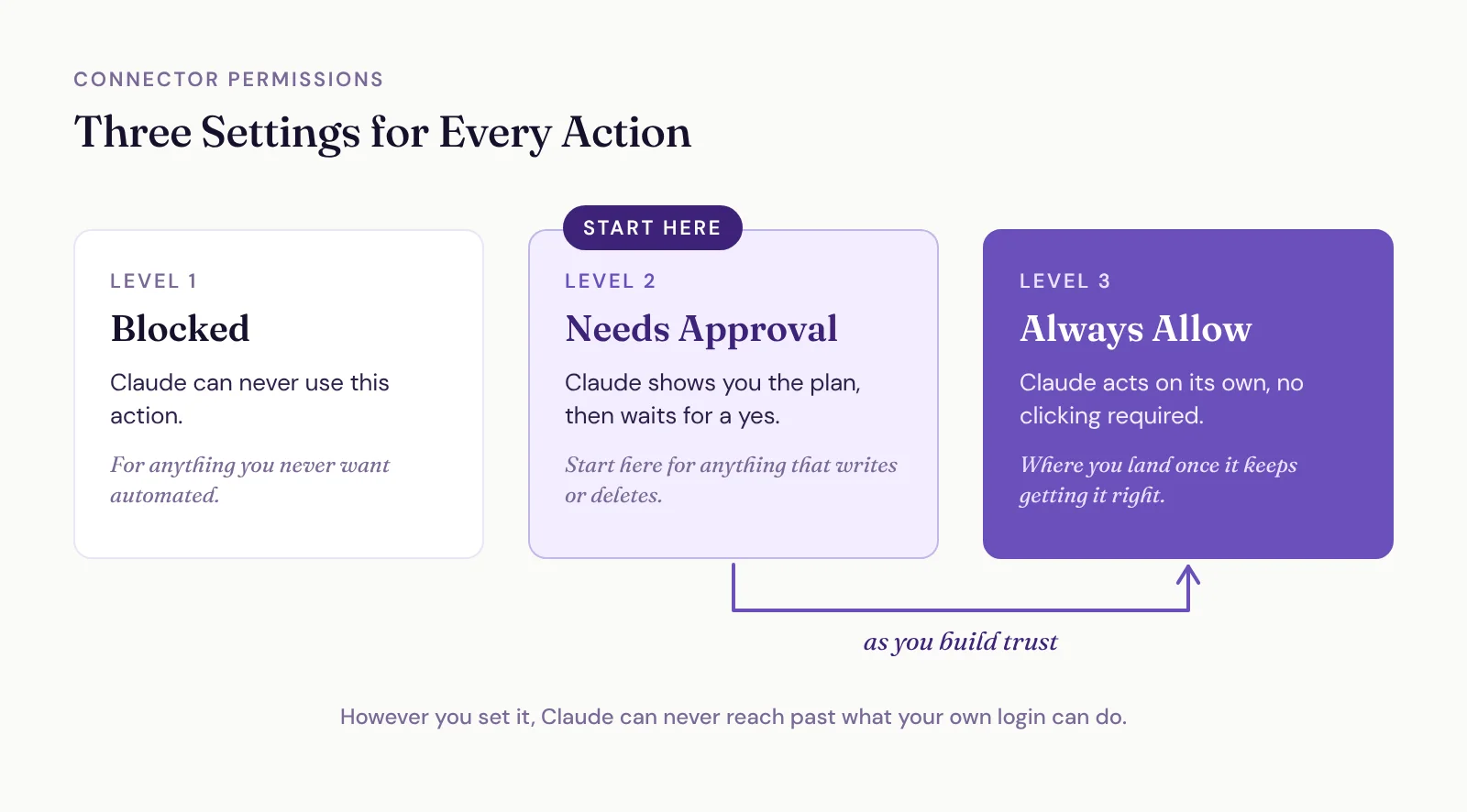
You decide what it does on its own. In Claude, every action a connector offers can be set to Always allow, Needs approval or Blocked.
Start at your comfort level. If you're nervous, set everything that writes or deletes to Needs approval. Claude shows you exactly what it's about to do and waits for a yes. When you get tired of clicking approve because it keeps getting it right, loosen it up.
Austin and I run with looser settings because we've used it long enough to trust it. I've yet to see it do anything wrong in any of the systems we've connected. Some days it honestly feels like magic.
The one place I'd stay strict is regulated data, like health records. I covered that in the AI for operations post.
Two Ways to Connect: The Default Connector or Your Own MCP Server
We build our clients' systems on Zoho One, and Zoho's great at this, so I'll use it as the example. Not every app gives you both options.
The default connector. In Claude, open the connectors directory, search for Zoho CRM (or Zoho Books, or Zoho Projects) and connect your account. It covers what a normal user does day to day: find these records, update this deal, create a task for me.
Your own MCP server. Zoho also has its own MCP platform, where you build a custom server and pick exactly which tools your AI gets. That can mean workflow rules, custom functions, email templates and several Zoho apps in one connection. It's the stuff an implementer like me needs, and it's how you get AI doing a lot more on its own.
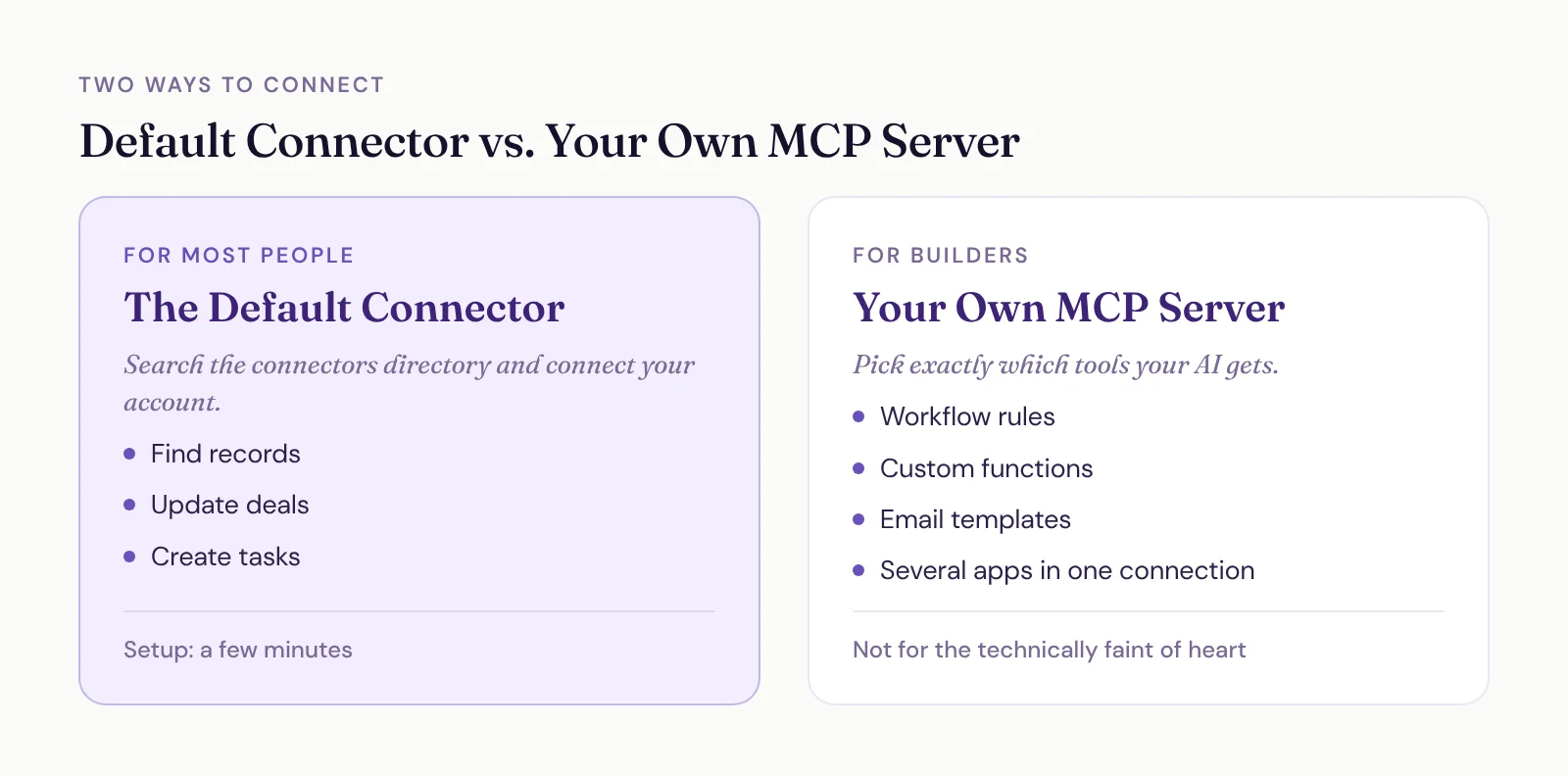
It's not for the technically faint of heart, at least not yet. For most people, the default connector is plenty. If you want the custom setup and don't want to build it yourself, that's the kind of thing we help with.
What Changes Once It's Connected
Two client stories show what it looks like in practice.
800 old contracts, loaded in a couple of hours of babysitting. One client had about 800 past contracts going back to 2007, sitting in a folder. None of it was in his CRM. Claude read each contract and pulled out the client's contact details, the event and what was delivered. It created the account, the contact and the deal, filled in the fields and added a note with the contract details.
He spent a couple of hours keeping an eye on it. Doing it by hand would've taken well over 100 hours.
7,000 leads, sorted without anyone touching them. Another client's lead list had turned into a junk drawer. More than 7,000 people, a lot of them newsletter subscribers who never belonged in the CRM in the first place.
Claude went through every single one, looked at their engagement history and decided who belonged in the CRM and who belonged on the email list. It tagged them. We exported the email-list group into their email marketing tool and removed them from the CRM.
How long would it take you to sort 7,000 leads by hand? They didn't have to find out.
Build the Habit: "How Can AI Help with This?"
Here's the shift that matters more than any setting.
Most people look at a task, assume AI probably can't do it and do it by hand. Flip that. Before you start something tedious, ask yourself how AI could help with it. Then give it a shot. Worst case, it can't, and you've lost two minutes.
Here are some to try once your CRM is connected:
Scan a business card. You're at a networking event and someone hands you a card. Snap a picture, give it to Claude, and have it create the lead plus a follow-up task to check in. No business card scanner app required.
Run your task list every morning. A routine goes through your CRM tasks, drafts follow-up emails based on past conversations, waits for your edits and approval, then recommends next steps.
Resurface lost deals. Once a month, have it comb through the deals you lost and flag anyone worth reaching back out to.
Build your monthly report. New leads, new revenue, whatever you track. A monthly routine builds it for you, so you're not stuck with your CRM's default reports.
Turn calls into records. Have it read your call recordings, fill in the deal details and put the summaries on the record as notes.
Draft contracts from context. Instead of a mail merge from fields, have it write the contract from everything it knows about the deal, then send it into your e-signature app. For us, that's Zoho Sign. (Here's how we handle auto-filled speaking contracts today.)
Read your audience feedback. Export the results from your post-talk feedback form, hand them to Claude and ask what your audience is telling you.
Turn the Ones That Work into Skills
When one of these works, don't retype the prompt next time. Turn it into a skill, and if it should happen on a schedule, have a scheduled task run it.
That's how we run SpeakerFlow now. A few of ours:
a voice guide, so every draft sounds like us
a daily open that triages the inbox and sets the day's priorities
a daily close that wraps up loose ends and sets up tomorrow
a proposal builder
client call and sales call wrap-ups that log the call, update tasks and draft the follow-up email
None of them are flashy. Together they save us an incredible amount of time, and they leave more room for the human side of the work: the calls, the relationships, the thinking.
If you want a head start, we're sharing the skills that work for any business in our Claude skills library. It grows as we build. Download a skill, upload it to Claude and ask for help the way you normally would.
Connect your CRM, then go find out what it can do. The worst move is assuming it can't help and doing it all by hand anyway.