If your CRM is a mess, you don't need a free weekend and a pot of coffee to fix it. Connect AI to it and let it do the cleanup. It takes a few hours, and most of those hours are AI's, not yours.
Here's how it usually goes. You set up your CRM, use it religiously for a couple of months, then a busy season hits. Now there are hundreds of overdue tasks, a pile of leads you can't remember following up with, and a pipeline that hasn't matched reality since spring.
That's not a character flaw. Almost everyone falls off the wagon at some point. The problem is that getting back on means cleaning up first, and cleaning up by hand is miserable enough that most people just don't.
So don't do it by hand. Below is the exact order I'd use, with prompts you can copy and paste into Claude or ChatGPT.
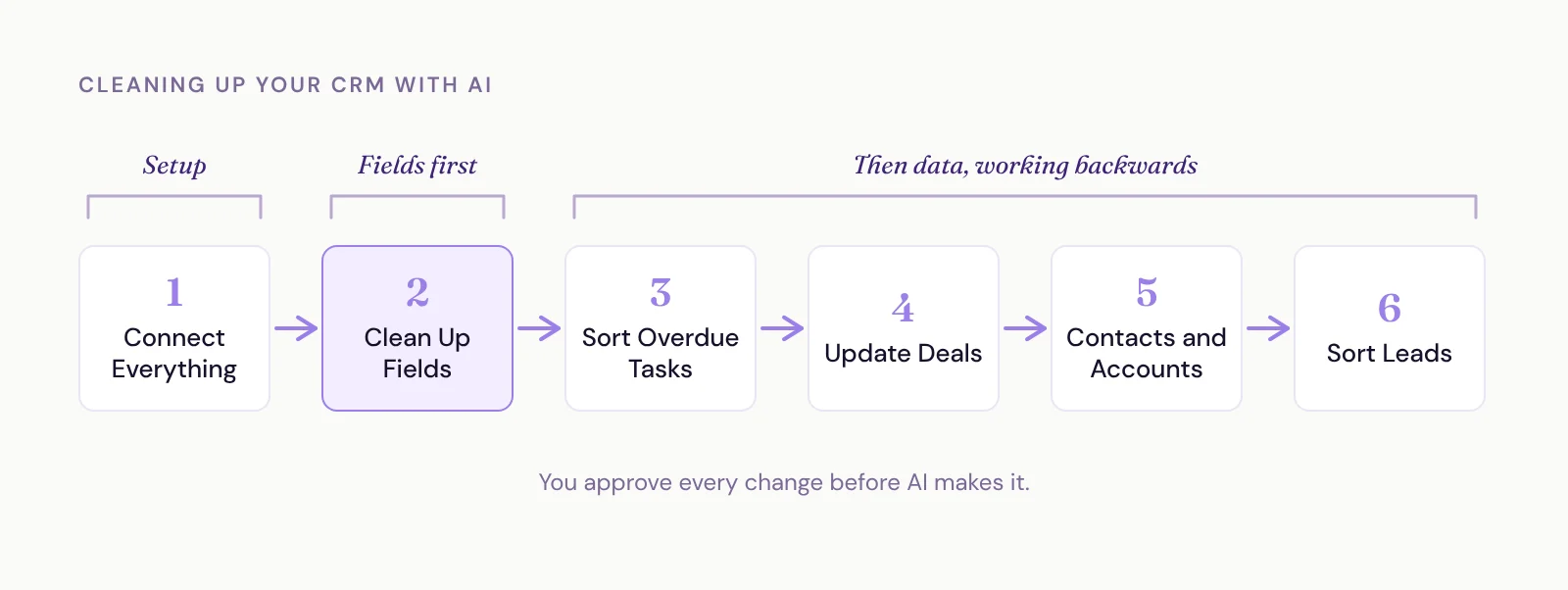
Step 1: Connect Everything First
AI can't tell you whether a task is done if it can't see your inbox. So before anything else, connect it to every place your relationships live:
your CRM
your inbox
your calendar
your booking tool (Calendly, Zoho Bookings, whatever you use)
every invoicing and accounting tool you've used
The money tools matter more than people think. They're how AI catches up on past clients and past deals that never made it into the CRM.
If you haven't connected anything yet, I walked through the setup and the safety settings in connecting AI to your CRM. The short version: set anything that edits or deletes to need your approval. You'll want that for this whole project.
Then run this to make sure it can see what it needs:
Step 2: Clean Up Your Fields
Start with the screens, not the records. If every record has dozens of fields and you use a handful, you'll never keep it up to date. Nobody would.
Most CRMs collect fields like a junk drawer. An old template, an import that added its own columns, a field somebody made for one deal three years ago. The test I use is simple: a field only earns its spot if you'll ever pull data out of it. If it's context, like how a client makes decisions, it belongs in a note.
Go through its list and mark what goes. Then take those fields off the layout.
In Zoho, a field you remove isn't gone for good. It moves to an unused fields list with all its data intact, so you can drag it back in if you ever miss it. It's one of my favorite things about Zoho. Still, give it a month or two before you delete anything permanently.
Using a different CRM? Do a test run first. Make a test field, put some data in it, remove it and see if you can get it back. If you can't, hit us up. We'll get you a better CRM.
Depending on how your CRM is connected, Claude can take the fields off the layout itself, or you can do it in a few clicks in your layout settings. If your CRM won't let you edit layouts through a connector at all, that's another reason to talk to us.
Step 3: Sort Out Your Overdue Tasks
This is where AI really earns its keep. A list of hundreds of overdue tasks is paralyzing because you don't know which ones already happened. You emailed half of them. You met with some. A few don't matter anymore.
AI can check every single one against your inbox and calendar in the time it'd take you to do five.
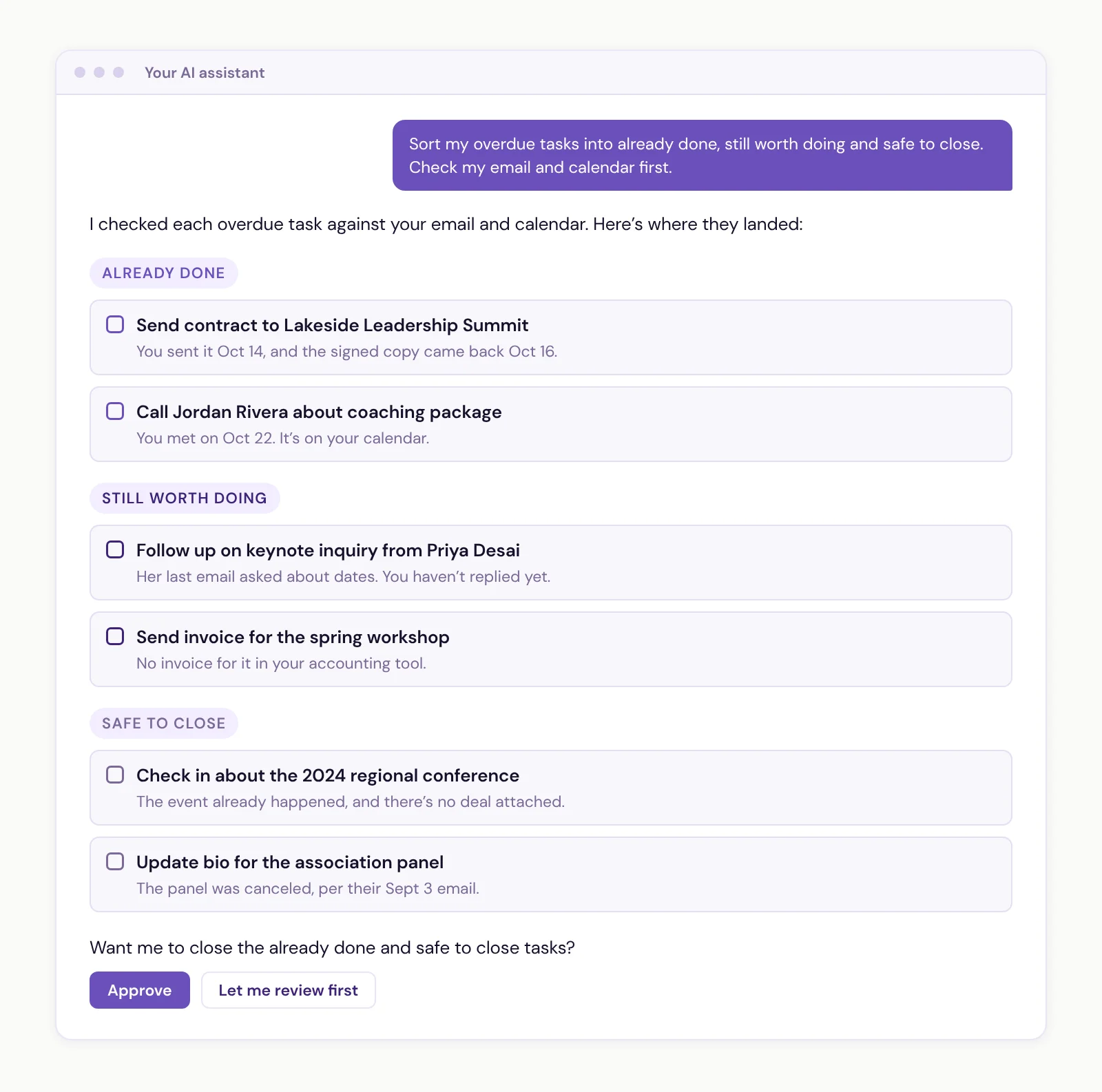
Skim the list, fix anything it got wrong, then tell it to close the first and third groups. What's left is a task list you can actually work.
Step 4: Make Your Deal Pipeline Current
From here, work backwards through your data, starting with the money. If your pipeline is wrong, every report and every forecast you pull from it is wrong too.
Don't stop at what's already in your CRM. Your past clients are some of the best people to nurture, and a lot of them probably aren't in there.
One client of ours had about 800 contracts going back to the early 2000s, in a pile of different formats. Speaking gigs, coaching, consulting, all of it. We connected his inbox, pointed Claude at the folder of contracts and had it go through each one: create the deal, organize it, check for duplicates and all that jazz.
It saved him hundreds of hours. Now every past client he's ever had is in his CRM, and he can actually start nurturing them.
Step 5: Clear Out Contacts and Accounts You Don't Need
Contacts should be people you have a real relationship with: clients, past clients, referral partners, bureau agents, people you've actually talked to. If you look at a name and have no idea who it is, it probably doesn't belong there.
Accounts are quicker. An account with nothing attached to it is just clutter.
Step 6: Get Your Leads into the Right Status
Leads are last because they depend on everything else being right. Here are the statuses we use with our clients:
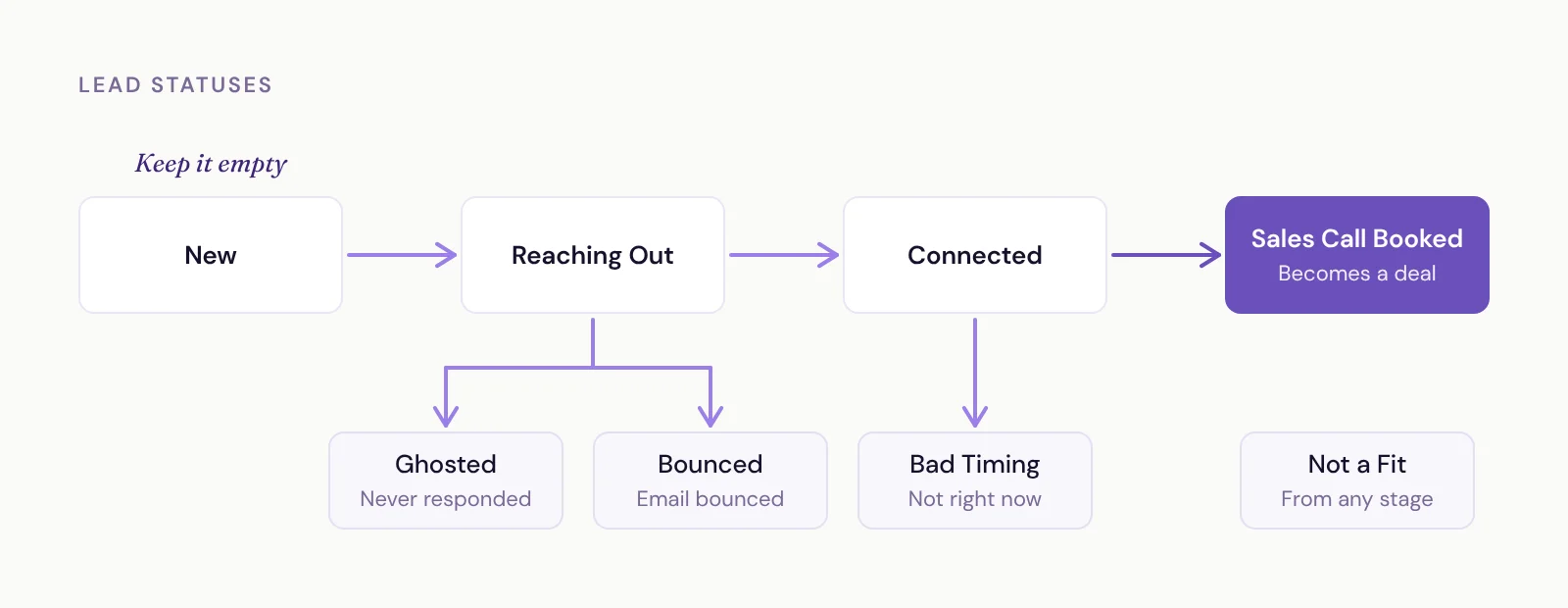
New: just came in. This is a parking spot, and it should be empty most of the time.
Reaching Out: people you're actively reaching out to.
Connected: they replied, and you're working toward a sales conversation.
Bad Timing: they said now isn't a good time.
Ghosted: they never responded. Dormant, for now.
Bounced: their email bounced.
Not a Fit: they're not someone you'd work with.
The goal of this step is a lead list that's current and accurate, with as few people in New as possible. Anyone still in New when you're done is someone you're about to start reaching out to.
And if a lot of your leads are really just newsletter subscribers, they don't belong in your CRM at all.
Paste your own statuses into this prompt if they're different:
No Connector? Use Exports Instead
If your CRM doesn't connect to your AI tool, you can still do most of this. Export each module as a CSV, upload it, and ask the same questions. AI will tell you what to change, and you'll make the changes yourself.
It's slower, and AI can't check your inbox or calendar this way, so the task and pipeline steps get a lot weaker. If you can connect, connect.
What This Actually Costs You
A few hours, start to finish, and most of it is AI working while you do something else. You'll spend maybe an hour reviewing its lists and clicking approve.
Done by hand, a cleanup like this is easily well over 100 hours. I'd rather spend that hour.
Once it's clean, keeping it that way is about a few daily habits, not another cleanup.