
It's Probably Not Your Email Tool
You've got a solid follow-up plan, and nobody's replying. So you start shopping for a new email tool.
Hold that thought. Most of the time the tool is fine. The problem lives a level down, in a few lines of text on your domain called DNS records. If the ones for your main inbox are missing, Google, Microsoft and corporate email filters can't confirm your emails are really from you. So they quietly send them to spam, or block them outright.
I see this constantly. When we run a client's domain through a deliverability test before fixing anything, most score well under 5 out of 10. Three that stuck with me:
One client's Gmail had never been authorized to send as their own domain. No Google SPF entry, no Google DKIM. They tested around 5 out of 10. One working session later, 10 out of 10.
Another sent a welcome-back email to roughly 4,000 contacts after switching systems. It went to spam. The fix was a couple of missing records at their domain host, and the next test email landed right in the inbox.
A third couldn't get emails through to a contact at a utility company, who had to reply from her personal Gmail. The utility's IT team was rejecting anything that failed SPF. That client went from about 6 out of 10 to 10 out of 10.
Then there's the part that stings. After we fixed one client's records, they started hearing back from people they'd been following up with for months. Those emails hadn't been ignored. They'd never arrived, and some opportunities fell through the cracks because of it.
That's why this matters so much for speakers, coaches and consultants. Your buyers sit behind corporate email filters, and those filters are strict about anything that isn't authenticated.
What SPF, DKIM and DMARC Actually Do
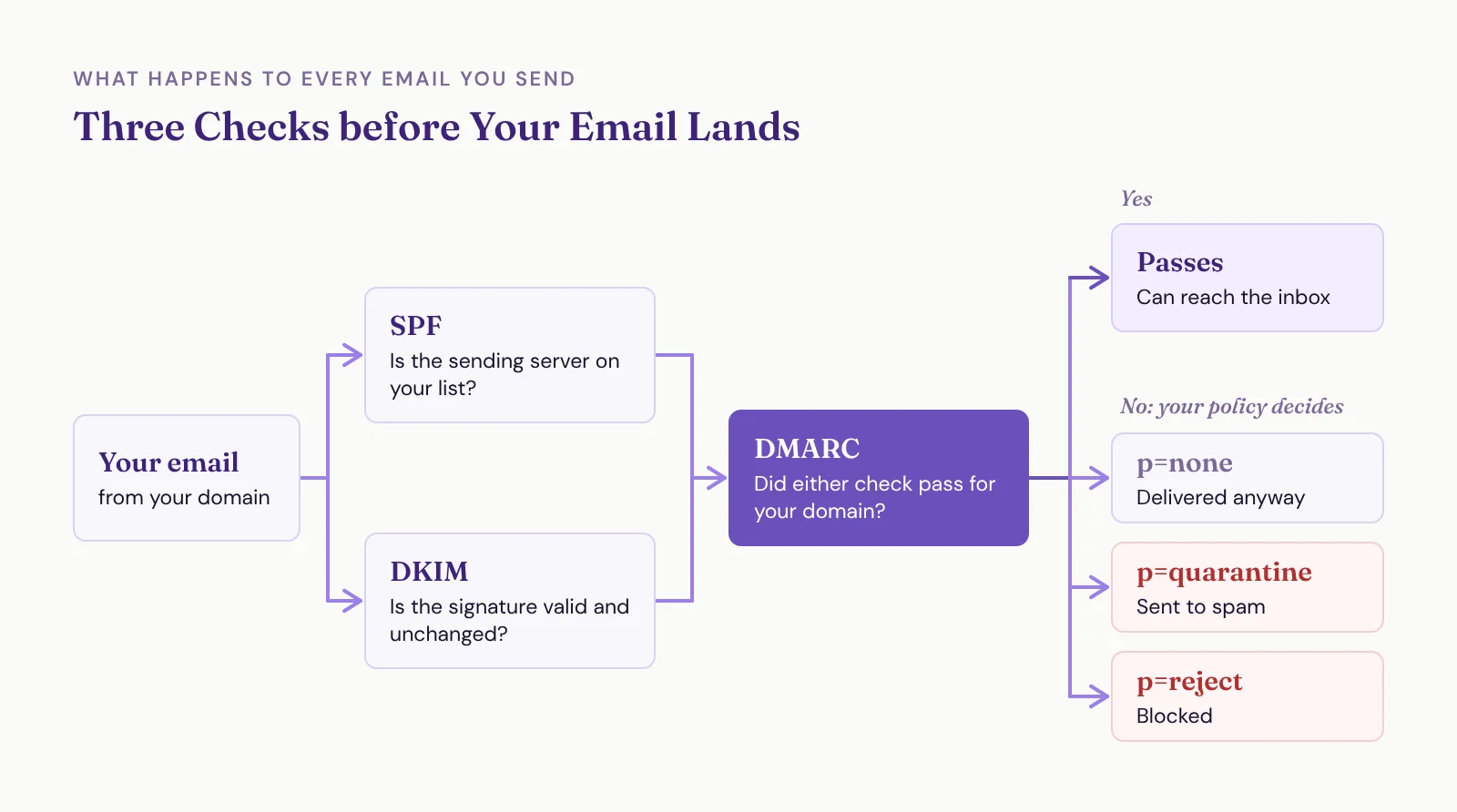
Three records, three jobs:
SPF (Sender Policy Framework) is the list of services allowed to send email as your domain. If Gmail sends as you@yourdomain.com and Google isn't on that list, the email looks suspicious.
DKIM (DomainKeys Identified Mail) is a digital signature on every email. It proves the email really came from your domain and wasn't changed along the way.
DMARC tells the receiving inbox what to do when an email claiming to be from you fails those checks: deliver it anyway, send it to spam or block it. It's also the piece that stops someone else from putting your address in the From line.
Think of a building with a guest list. SPF is the guest list, DKIM is the ID check at the door and DMARC is the instructions you leave the bouncer for anyone who fails both.
First, Figure Out Who Actually Hosts Your Email
You can't add the right records until you know who runs your email, and that's not always obvious.
Apple Mail, Outlook and the Gmail app are email clients. They're the screen you read email on. The company handling your mail behind the scenes is your email provider: usually Google Workspace or Microsoft 365, sometimes a mailbox that came with your domain from GoDaddy, Bluehost or your web host.
Not sure which one you have? Run your domain through a free MX lookup, like the one at MXToolbox. If the results mention google.com, you're on Google Workspace. If they mention outlook.com, it's Microsoft 365.
Your Email Host Doesn't Set These Up for You
This is what catches almost everyone. Signing up for Google Workspace or Microsoft 365 gets your inbox working. It doesn't fully authenticate your domain, and neither one walks you through it at setup. You have to know to go looking.
So whoever set up your email, whether that was you, your web person or a friend who knew enough to be dangerous, probably got it sending and stopped there. Very few speakers and coaches have a real IT firm handling this.
The work happens in two places: your provider's admin center, and your DNS settings (wherever your domain is managed, like GoDaddy, Squarespace or Cloudflare).
Google Workspace
Add Google to your SPF record. Add include:_spf.google.com to it. If you don't have an SPF record yet, the whole thing is v=spf1 include:_spf.google.com ~all. (Google's SPF instructions)
Make sure Gmail has been on for a few days. Google won't let you generate a DKIM key until 24 to 72 hours after Gmail is turned on for your domain. If you've been using it a while, move on.
Generate your DKIM key. As a super admin, go to Admin console -> Apps -> Google Workspace -> Gmail -> Authenticate email. Pick your domain, click Generate New Record and choose 2048-bit.
Add it to your DNS. Create a TXT record using the host name Google shows you (usually google._domainkey) and paste in the long value.
Start authentication. Back on the Authenticate email page, click Start authentication. Google says it can take up to 48 hours to start working. (Google's DKIM instructions)
Microsoft 365
Add Microsoft to your SPF record. Add include:spf.protection.outlook.com to it. On its own, the record is v=spf1 include:spf.protection.outlook.com -all. (Microsoft's SPF instructions)
Open the DKIM settings. In the Microsoft Defender portal, go to Email & collaboration -> Policies & rules -> Threat policies -> Email authentication settings, then the DKIM tab.
Get your two records. Select your domain. Microsoft shows you two CNAME records, one for selector1 and one for selector2.
Add both to your DNS. Copy them exactly. Microsoft builds part of each address for your account, so don't type one from an example.
Turn on signing. Back on the DKIM tab, turn on Sign messages for this domain with DKIM signatures. (Microsoft's DKIM instructions)
On anything else, like a GoDaddy or Bluehost mailbox, search your provider's help docs for its SPF and DKIM records. Same idea, different screens.
You Get One SPF Record, Not Three
This is the most common mistake I find, and it's a nasty one.
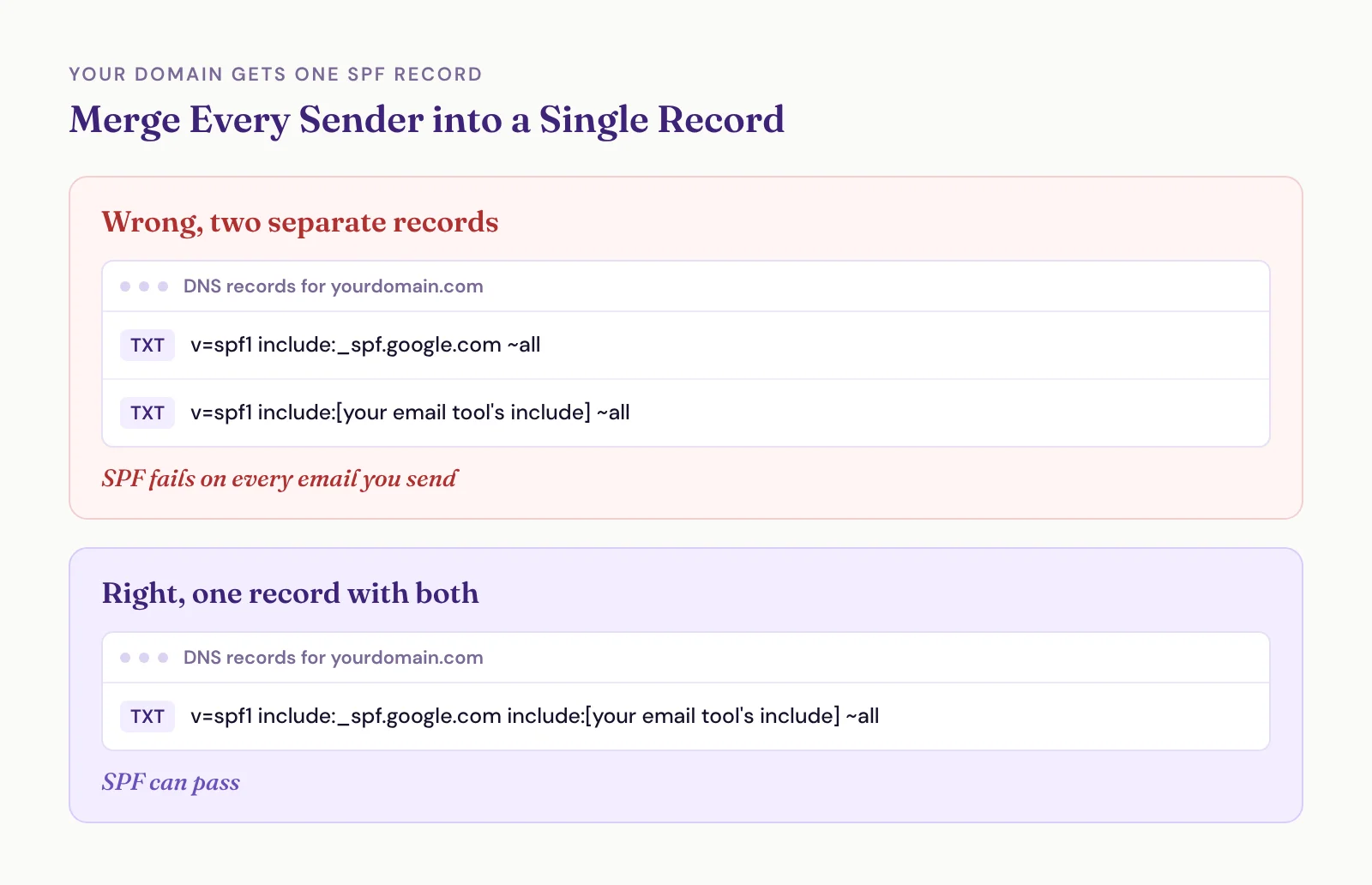
Every time a tool tells you to add an SPF record, it's tempting to create a brand new one. Do that three times and your domain has three SPF records. The rules allow exactly one. With more than one, SPF doesn't pick a winner. It fails, for every email you send.
The fix is to merge them into a single record with every sender inside it.
Wrong, two separate records:
v=spf1 include:_spf.google.com ~all
v=spf1 include:[your email tool's include] ~all
Right, one record with both:
v=spf1 include:_spf.google.com include:[your email tool's include] ~all
One more limit. An SPF record can trigger no more than 10 DNS lookups, and each include uses at least one. If you've piled up includes for tools you don't use anymore, clean them out.
Every Tool That Sends as You Needs Permission
Your email provider isn't the only thing sending email from your domain. Your CRM, email marketing tool, scheduler, invoicing, website forms and meeting reminders might all be sending too. Calendly, QuickBooks, Mailchimp, Squarespace form notifications and Zoom reminders can all send as you, depending on how they're set up.
Any tool that sends as you@yourdomain.com needs two things:
Its include added to your one SPF record.
Its DKIM records added to your DNS.
In essence, you're giving that tool's servers permission to send on your behalf. Look in its settings for something like domain authentication, sender authentication or email deliverability, and it'll hand you the records.
If a tool sends from its own address, like a noreply address on its domain, you don't need to do anything. This is only for tools that send as you.
DMARC: Start at p=none
Google has required a DMARC record from anyone sending more than 5,000 emails a day to Gmail since February 2024 (Google's sender guidelines). Outlook.com started rejecting high-volume senders without one in May 2025 (Microsoft's announcement). Most speakers don't send that much, but deliverability tests check for it either way, and it takes two minutes to add.
Add a TXT record with the host _dmarc and this value: v=DMARC1; p=none;
The p is your policy, what inboxes should do with an email that claims to be from you and fails the checks:
none: deliver it normally. Nothing is enforced.
quarantine: send it to spam.
reject: block it entirely.
I'll level with you. p=none doesn't stop someone from forging your address in the From line. Google calls it a monitoring stage (Google's DMARC rollout guide). For a solo speaker or coach, though, a stranger spoofing your domain is rarely the real risk. Your own invoices landing in spam is.
That's what a stricter policy can do if you rush it. Switch to quarantine or reject before every tool that sends as you has SPF and DKIM in place, and you'll send your own invoices, calendar links and emails to spam, or nowhere at all. Get SPF and DKIM working first. Move up only if you have a reason to.
Notice that record has no reporting address. That's on purpose. DMARC can email you reports, but people put their own inbox in and get buried in automated reports they never read. If you do move to quarantine or reject later, turn reporting on during the switch (add rua=mailto: with a dedicated address; Cloudflare, for example, can give you one) and have AI read the reports to spot any tool that isn't authenticated yet.
How to Check Your Setup in Five Minutes
You don't need to read DNS records to know if you're in trouble. Use mail-tester.com:
Open the site and copy the email address it gives you.
From your normal inbox, send that address a real email. Copy the subject line and body from something you actually sent someone, and include your signature. Don't send "test" and "test."
Check your score.
Anything under 8 out of 10 means something needs fixing, and the report tells you what. Keep in mind it grades like a marketing email, so it may flag a missing unsubscribe link on a normal one-to-one email. That one doesn't matter.
Then run it again from your CRM or email marketing tool. Add a fresh mail-tester address as a contact and send to it from there.
A 10 out of 10 doesn't guarantee the inbox every time. Big companies, government agencies and some universities run filters that read incoming email and pull anything that looks promotional. But a 10 means the technical side is doing everything it can for you.
The other way to land in spam is people marking you as spam. That's the nuclear button for deliverability. A handful of complaints can sink your domain's reputation, and climbing back takes weeks of clean sending. So put an unsubscribe link in every marketing email, and an opt-out in any sales outreach you send from your CRM, something like "Want to stop receiving emails from me?" linked to your opt-out page. Give people an out and they'll take it instead of hitting spam. Normal back-and-forth with people you're already talking to doesn't need one. For the list side of things, I cover how to keep your list clean in another post.
If You Send Email to Run Your Business, This Is Yours to Own
Email deliverability is dry. Nobody gets into speaking because they love DNS records. But if your business runs on email, and it does, you can't set it up once and forget it. You don't have to become an expert. You just need to know enough to check.
When we set up a client's systems at SpeakerFlow, this is one of the first things we do. We check who hosts their email, add that provider's SPF and DKIM, set up every tool we install so it can send as them, and run the test before we call it done.